1. Removing a client
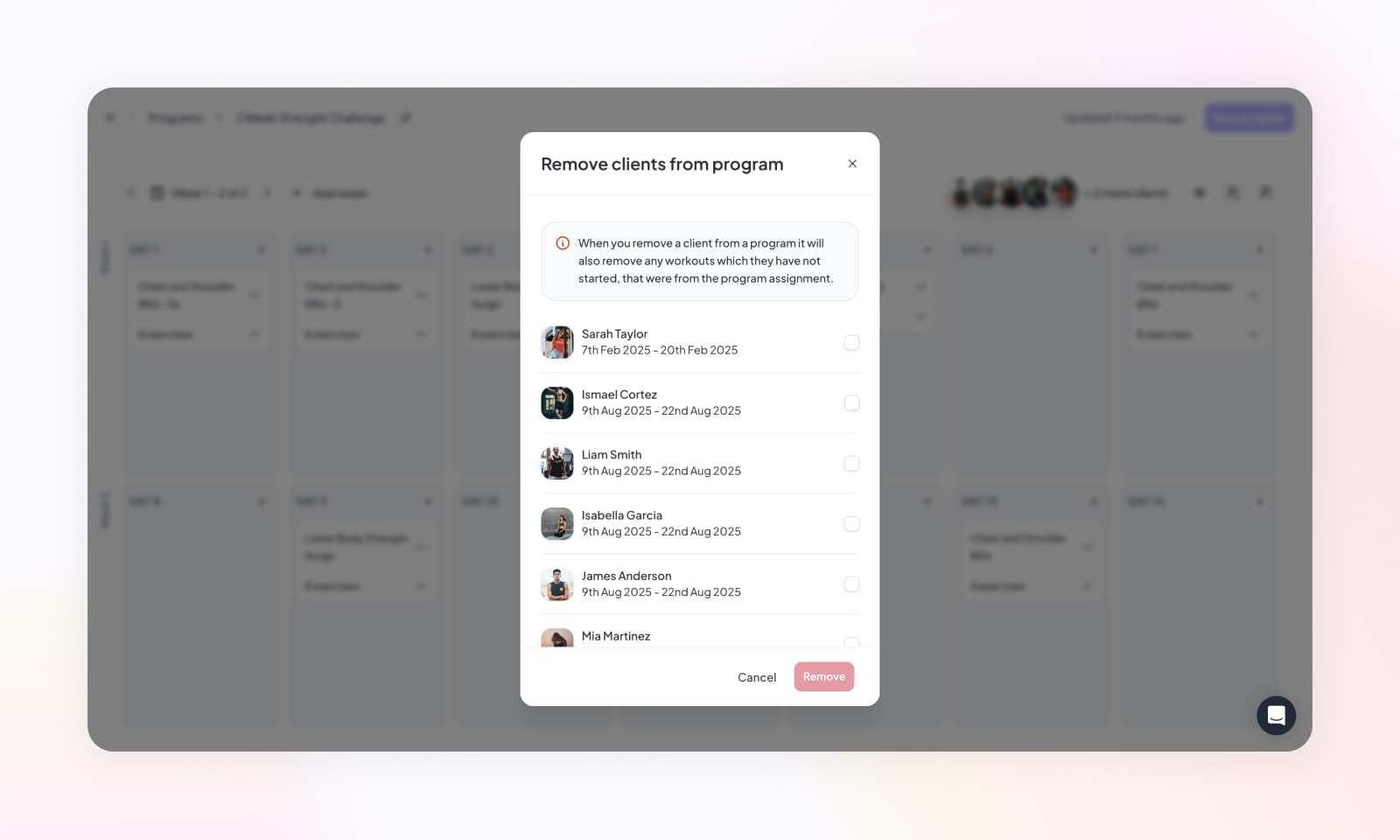
Once a training program has been assigned to a client, you can easily remove them from the program as needed. On the program page, locate the toolbar and click the (-) Remove Clients button, then select the clients you wish to remove from the program.
Note: Removing a client from a program will eliminate all associated workouts from their training calendar, except for those that have already been started or completed.
Alternatively, if you prefer to remove individual workouts rather than the entire program, navigate to the client's page and access their Training tab. From there, you can remove specific workouts from their schedule, providing flexibility in tailoring their training regimen to their specific requirements.